¶ PO Revisions
Revisions allow either party to propose changes to a Purchase Order after it has been sent. Suppliers can request adjustments to delivery dates, quantities, or pricing, while buyers can issue an updated PO document. Every change is tracked so both sides have a clear record of what was modified and when.
¶ Supplier-Initiated Revisions
Instead of acknowledging a PO as-is — or after an initial acknowledgment — a supplier can propose changes.
-
In the Actions panel, click Propose Revision.
-
Select the line items you want to modify.
-
For each selected item, update one or more of the following fields:
- Delivery Date
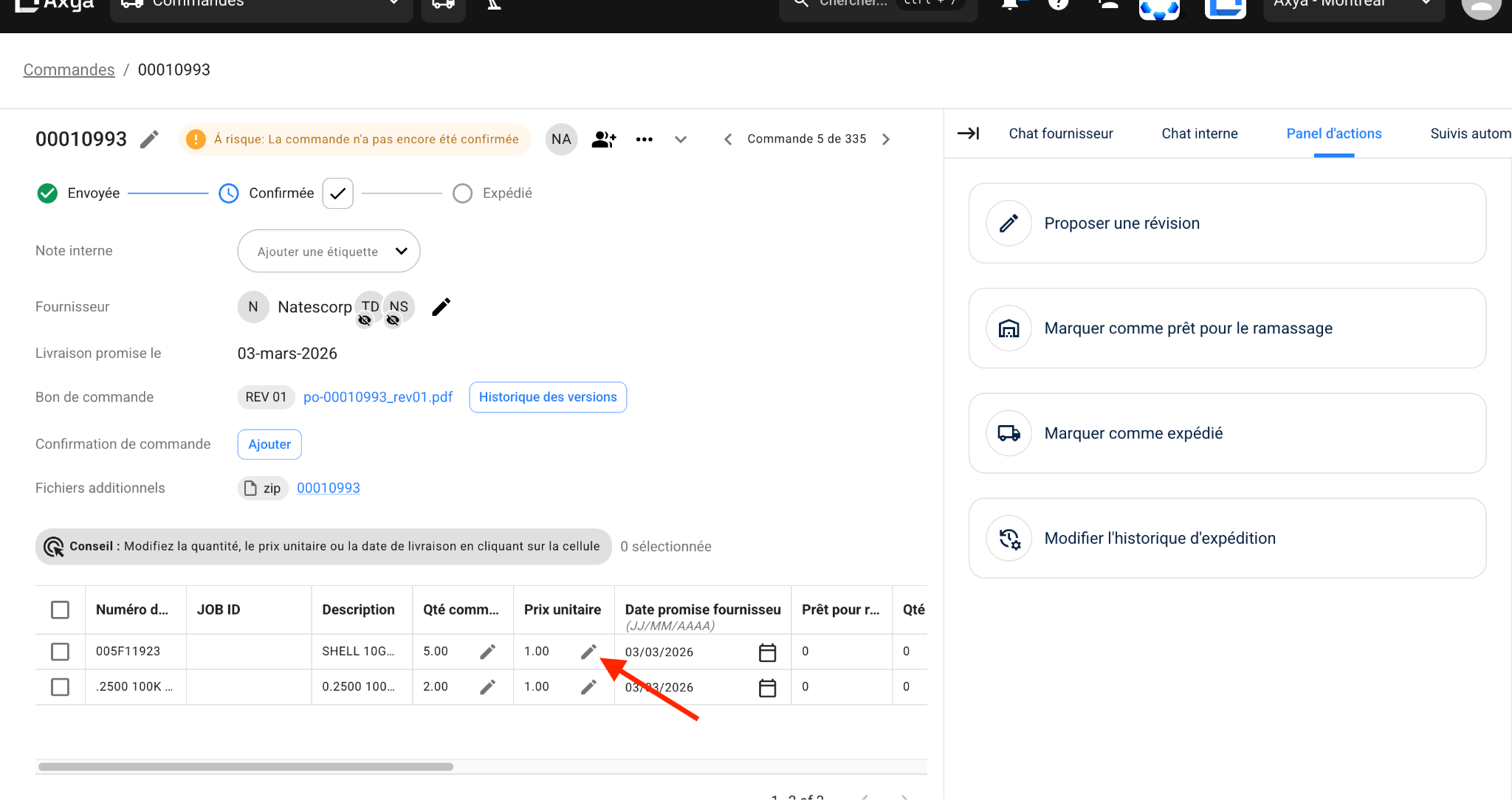
- Quantity
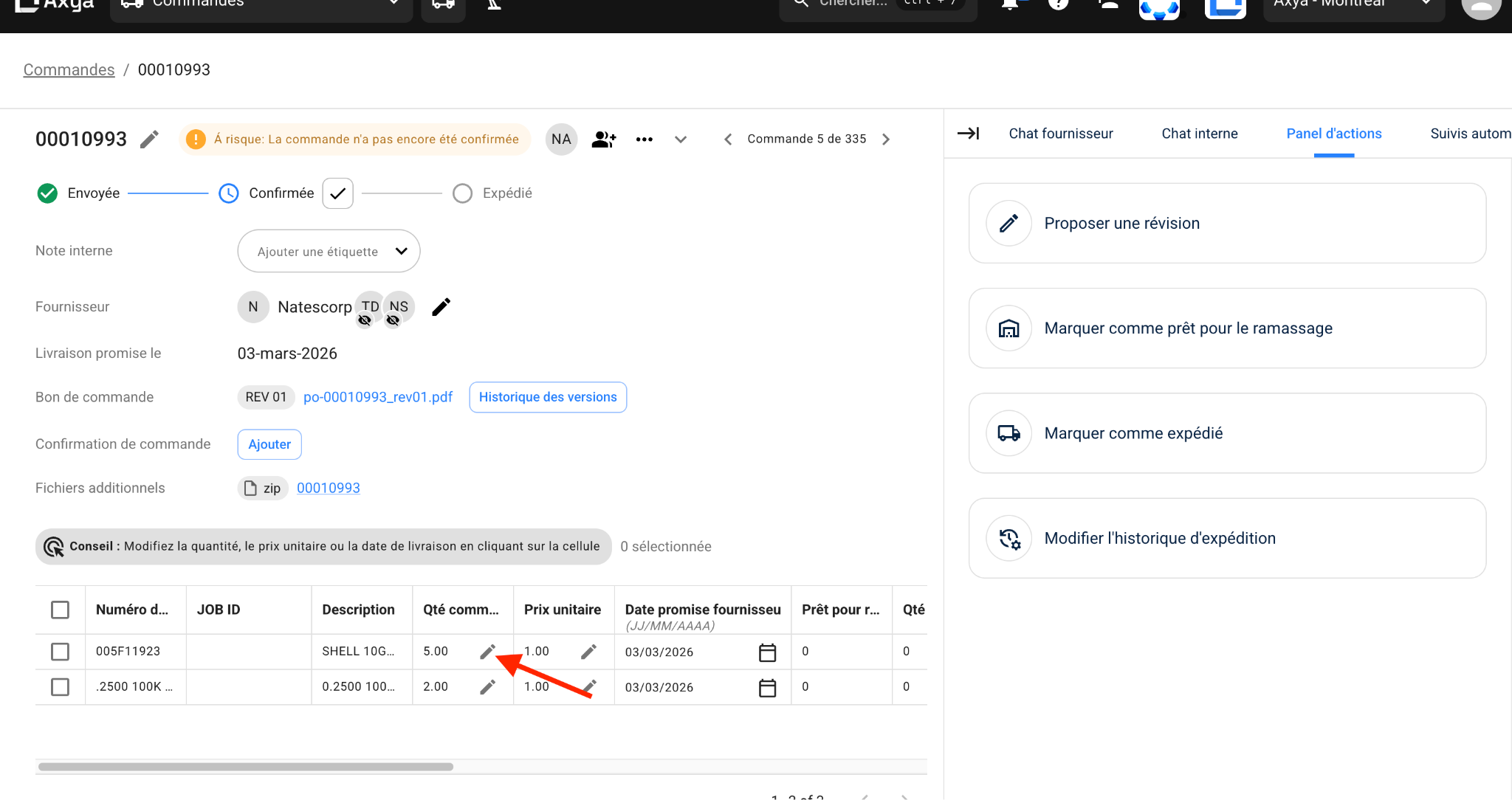
- Unit Price
-
Add an optional revision note explaining the reason for the change.
-
Attach any supporting files if needed.
-
Click Submit to send the revision proposal to the buyer.
After submission, the PO status changes to Updated, signaling the buyer that changes are waiting for review.
¶ Buyer Review of Revisions
When a supplier proposes a revision, the buyer sees the PO enter the Updated state. The Actions panel on the Order Detail Page automatically displays a Review Changes prompt.
¶ Reviewing Individual Changes
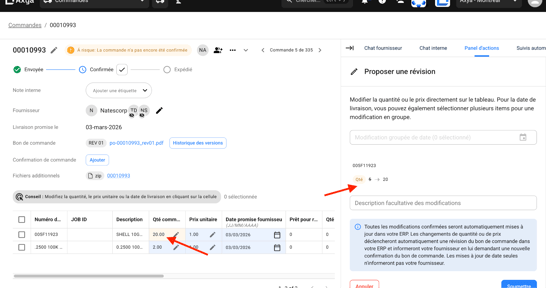
For each modified line item, the review interface shows:
| Element | Description |
|---|---|
| Field badge | Indicates the type of change (Qty, Price, Delivery Date). |
| Old value | The original value, displayed with |
| Arrow (→) | Points from the old value to the proposed new value. |
| Approve / Reject buttons | A checkmark to accept or an X to reject, shown per field. |
You can approve some changes and reject others independently — for example, accept a new delivery date but reject a price increase on the same line item.
¶ Bulk Actions
- Mark All as Approved — Accept every proposed change at once.
- Mark All as Denied — Reject all proposed changes at once.
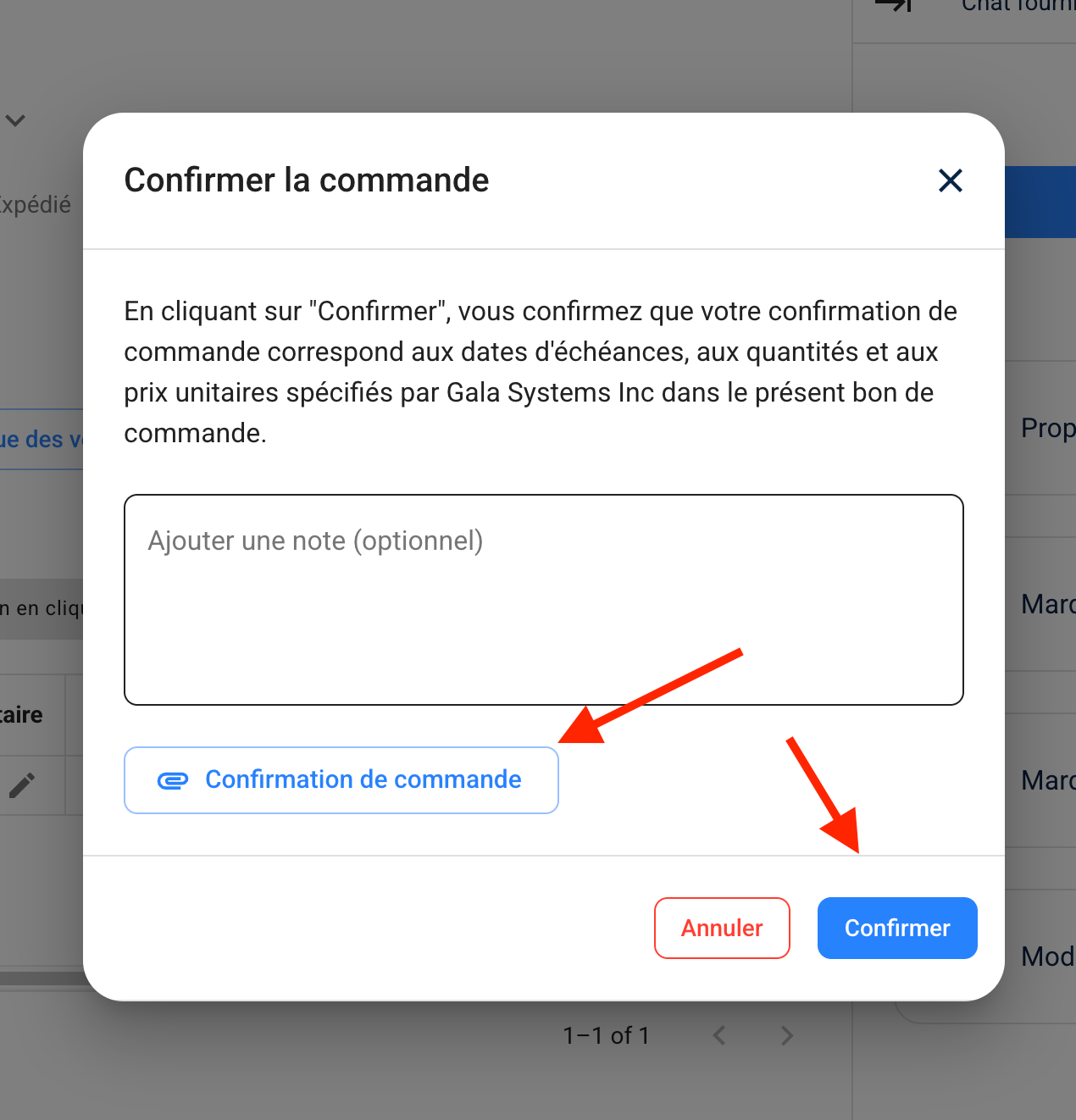
Once all decisions are made, confirm your selections. The PO returns to its previous active state with accepted changes applied and rejected changes discarded.
¶ Real-Time Financial Impact
As you review changes, Axya calculates the impact in real time:
- Per-line impact badges appear next to each modified field showing the dollar or time difference (e.g., "+$30.10", "+3 days").
- A summary bar at the bottom of the review panel aggregates the total cost and schedule impact across all proposed changes.
- Totals update dynamically as you approve or reject individual fields.
- Before finalizing, a confirmation dialog displays the overall impact summary so you can verify the net effect of your decisions.
¶ Buyer-Initiated Revisions
Buyers can also revise a PO from their side:
- On the Order Detail Page, open the actions menu and select Revise PO.
- Upload a new PO file as a replacement document.
- The updated version is sent to the supplier, who will see it as a new revision requiring acknowledgment.
¶ Revision History
All revisions are tracked automatically:
- Each revision is recorded with a timestamp and the name of the person who initiated it.
- Attachment revision numbers increment automatically, so you can always identify the latest version of a document.
- The full audit trail is visible on the order detail page, providing a complete record of who proposed what and when each change was approved or rejected.
For more on how revisions fit into the overall order flow, see PO Lifecycle.
| Previous | Next |
|---|---|
| Acknowledgment | Shipment Tracking |