¶ Order Detail Page
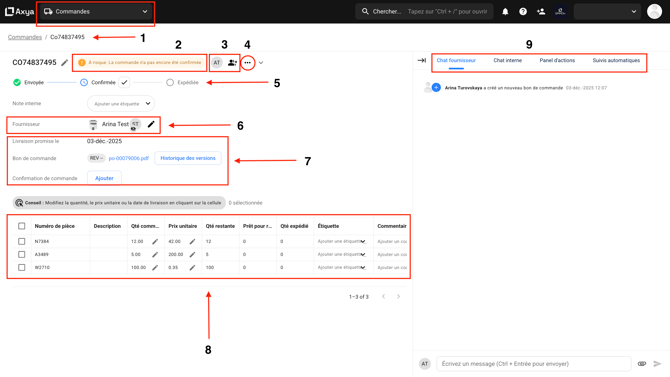
The Order Detail Page is your central workspace for managing a purchase order. It uses a split-view layout: a scrollable left section containing all order information, and a collapsible right panel with communication and action tools.
¶ Opening a Purchase Order
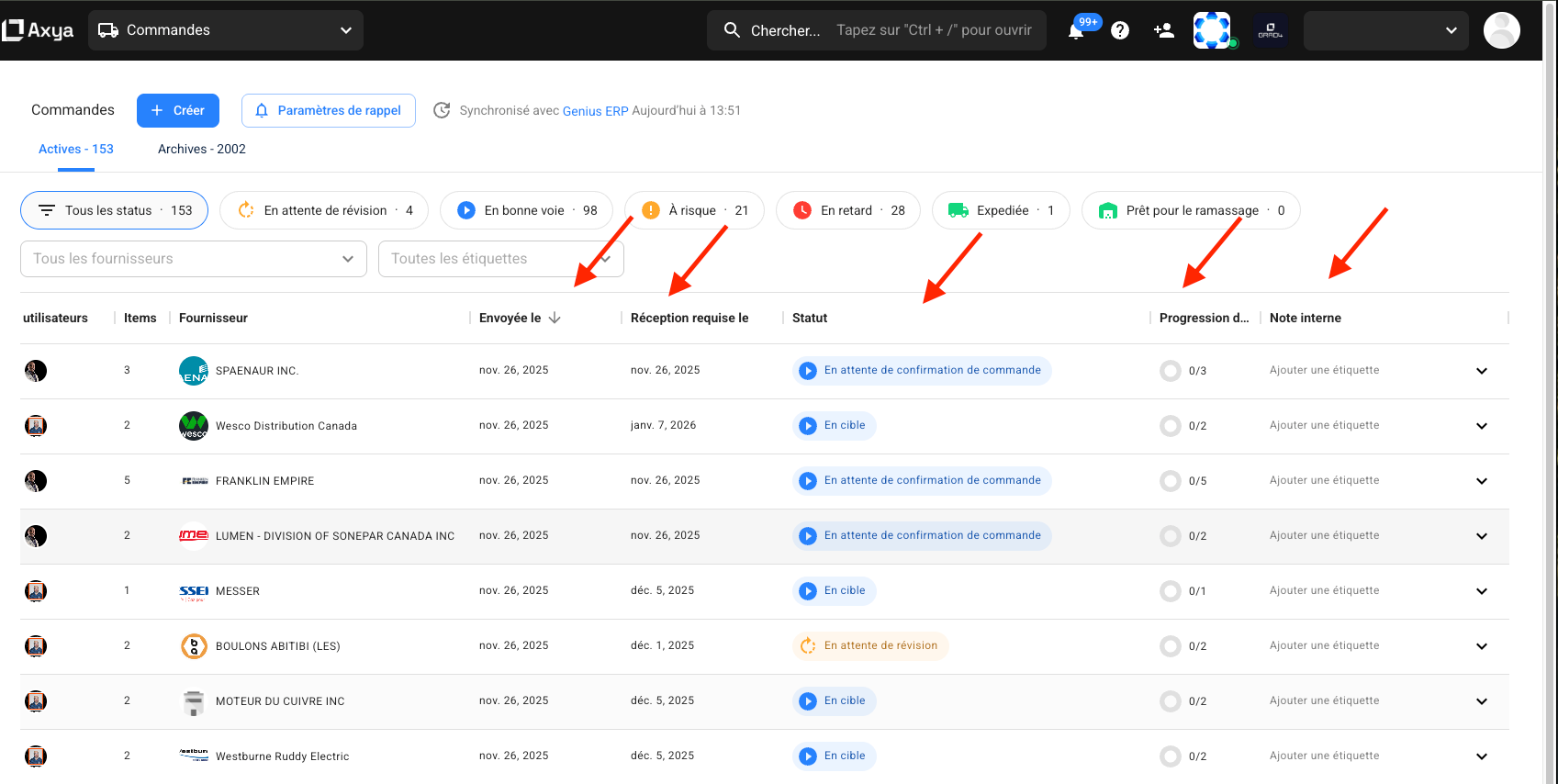
To open and view a purchase order:
- Navigate to the Orders menu
- Search for or select the PO you want to examine
- Click on the order row to open its detail page
¶ Header
At the top of the page you will find:
- Order Name — Click to edit the name inline, then press the save button to confirm.
- Order State Tag — A color-coded chip displaying the current PO status (e.g., On Track, Late, Shipped). See PO Lifecycle for all possible states.
- Navigation Arrows — Move to the previous or next order without returning to the listing.
- Auto-Saved Indicator — Confirms that your latest changes have been saved automatically.
- Actions Menu (three-dot icon) — Contains additional operations:
- Cancel — Cancel the order entirely.
- Delete — Permanently remove the order (available for Draft orders).
- Mark as Complete — Close the order and move it to the Archived section.
- Revise PO — Initiate a buyer-side revision. See Revisions for details.
¶ Progress Stepper
A visual stepper beneath the header tracks the order through its key milestones:
Sent → Acknowledged → Ready for Pickup → Shipped
Each step is highlighted as the order advances. If a checkbox appears next to the Acknowledged step, it means you can confirm the PO on behalf of the supplier. For a full explanation of how states map to these steps, see PO Lifecycle.
¶ Order Details
Below the stepper you will find:
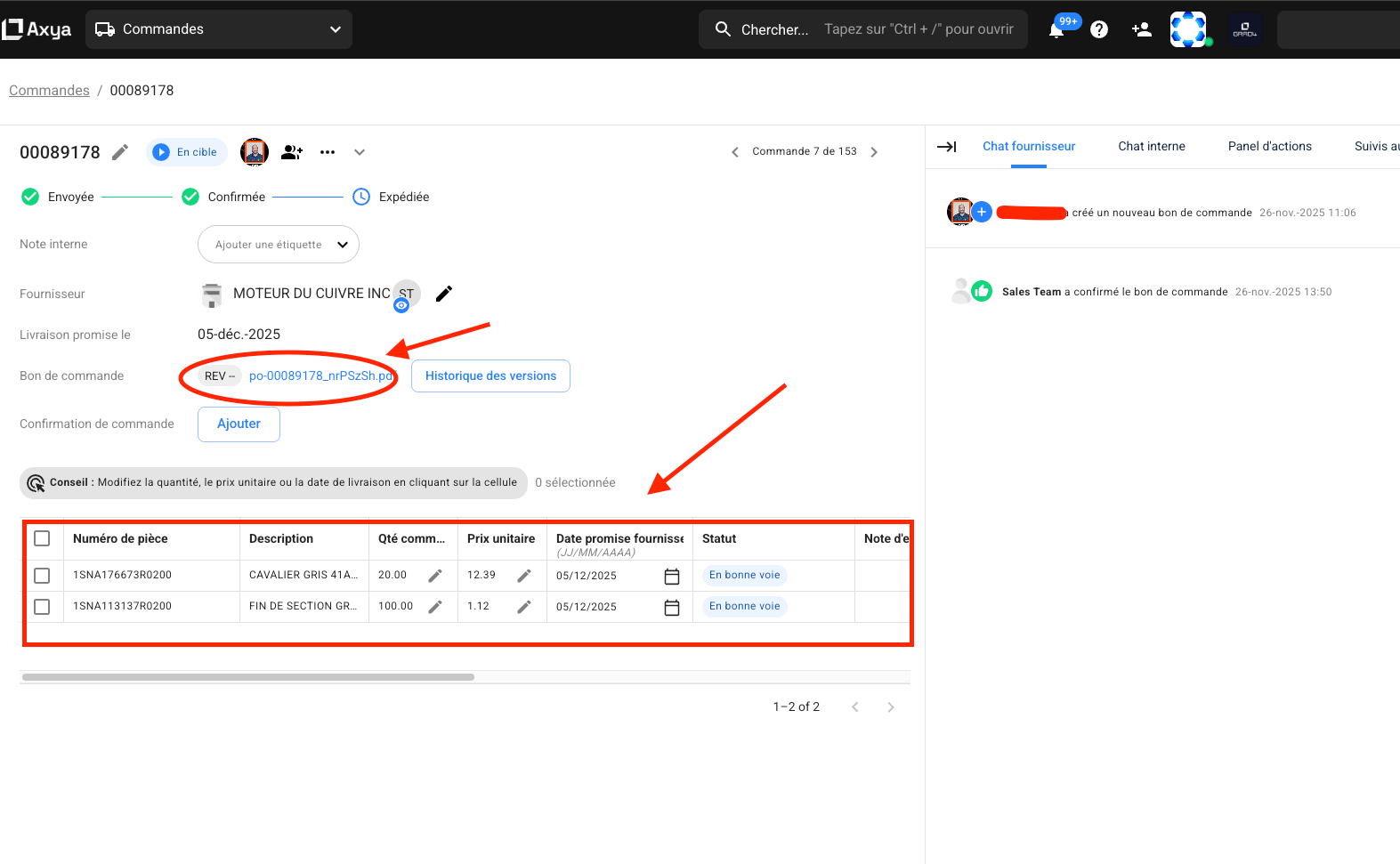
- Supplier Information — Supplier name, avatar, and contact details. A view indicator shows whether the supplier has consulted (opened) the PO.
- Main Delivery Date — The supplier's promised delivery date.
- PO Files / Attachments — Documents attached to the order (drawings, specs, contracts). The Add button allows you to upload a supplier confirmation received by email on the supplier's behalf. If revisions have been made, a version history displays all previous PO documents.
- Collaborators — Team members involved in this order, shown as a row of avatars. Collaborators receive notifications and can participate in internal discussions.
- Click the + icon to add collaborators: search for an existing internal user or invite a new collaborator by entering their email, language, and permission level. Click Save to confirm.
- Internal Notes — Free-text notes visible only to your team.
- Distribution Details — The list of supplier contacts who received the order notification. Click the pencil icon to edit the distribution list: add or remove contacts by selecting from the dropdown, then click Valider (Validate) to save changes.
¶ Line Items Table
The main body of the page lists every line item on the order. Each row displays:
| Column | Description |
|---|---|
| Part Name | Name or description of the item |
| Quantity | Ordered quantity |
| Unit Price | Price per unit |
| Total Price | Calculated line total |
| Delivery Date | Expected date (editable in certain states) |
| Supplier Promised Date | The date the supplier committed to |
| Supplier Item Code | The supplier's internal reference for this part |
| Project / Job Number | The associated project or job from your ERP |
| Status Badge | Current status of this specific line item |
| Supplier Confirmation | Shows a green indicator once the supplier has confirmed this line |
| Shipment | Tracks the shipment stage (final milestone) |
| Remaining / Shipped / Ready for Pickup Qty | Breakdown of quantity progress |
Scroll right in the table to see additional columns. Columns related to attachments (PO document, supplier confirmation, etc.) are also available.
Each line item can also hold file attachments and internal notes specific to that item.
¶ Bulk Actions
Select multiple line items using the checkboxes to perform bulk operations such as changing delivery dates, marking items as shipped, or updating quantities. This is especially useful for large orders. For shipment-related actions, see Shipment Tracking.
¶ Right Panel
The collapsible right panel contains four tabs.
¶ Supplier Chat
A public conversation thread between your team and the supplier. Both parties can send messages and attach files. A read-status indicator shows whether the other party has seen each message.
¶ Internal Chat
A private discussion space visible only to your team. Use threaded conversations to coordinate with collaborators without the supplier seeing any of the exchange.
¶ Actions
This tab displays context-dependent actions that change based on the current PO state:
- Default actions — "Propose Revision", "Mark as Ready for Pickup", "Confirm Shipment", and "Edit Shipping History". When applying updates, you can choose to apply changes to all line items or only to selected items.
- When the PO is in Updated state — A "Review Changes" panel appears showing old and new values side by side for each changed field. You can approve or reject each change individually. See Revisions.
- When proposing a revision — A form lets you modify delivery dates, quantities, or prices. You can add a note explaining the reason and attach supporting files.
¶ Automated Followups
A timeline of scheduled follow-up reminders for this order. Each entry shows an icon, the followup type, and the scheduled date. You can mute individual followups to stop notifications or reschedule them to a different date.
Automated reminders are enabled by default. They can be disabled or re-enabled on a per-PO or per-supplier basis from this tab.
| Previous | Next |
|---|---|
| Managing Orders | PO Lifecycle |