¶ Managing Orders
The Orders page is your central dashboard for tracking every Purchase Order across its lifecycle. It gives you a real-time view of order status, delivery progress, and team activity — all in one place.
¶ Navigation
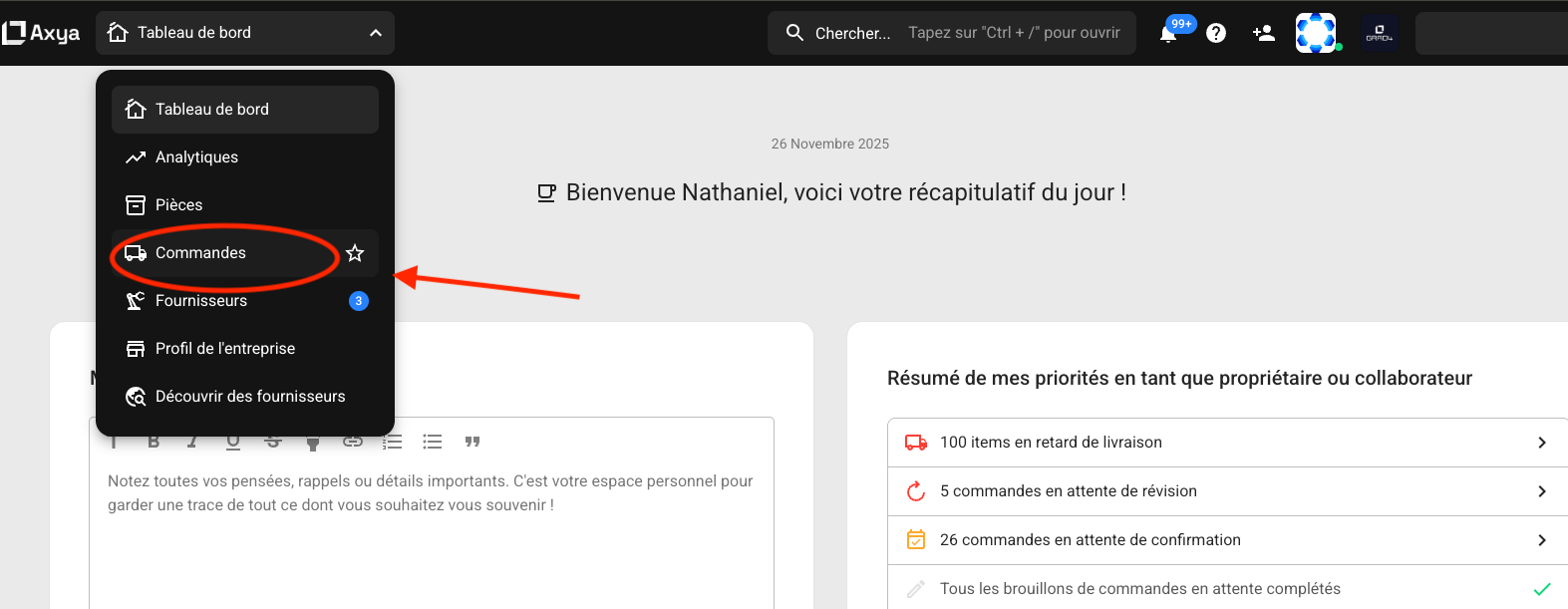
Access the Orders page from the main menu in the top-left corner of the Axya home page. Click the menu, then select Commandes (Orders) to open the main Orders dashboard. This is your starting point for creating, reviewing, and managing all Purchase Orders.
¶ Tabs
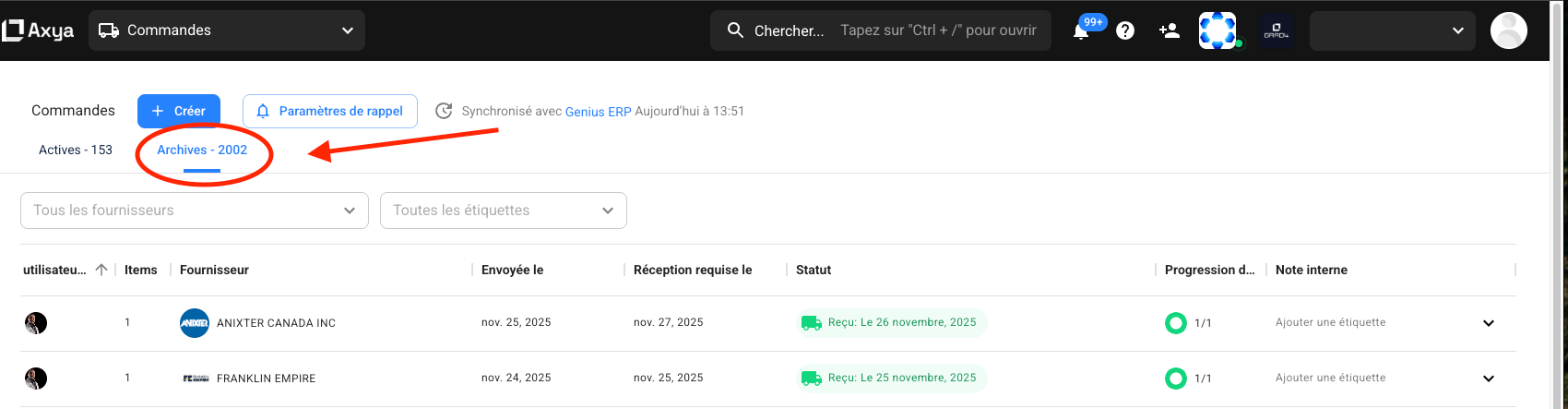
The Orders page is organized into two tabs:
- Active — All orders that are currently in progress, from drafts through shipped items. A count badge shows the total number of active orders.
- Archived — Orders that have been completed or archived. Use this tab to review historical orders and past supplier performance.
¶ State Cards
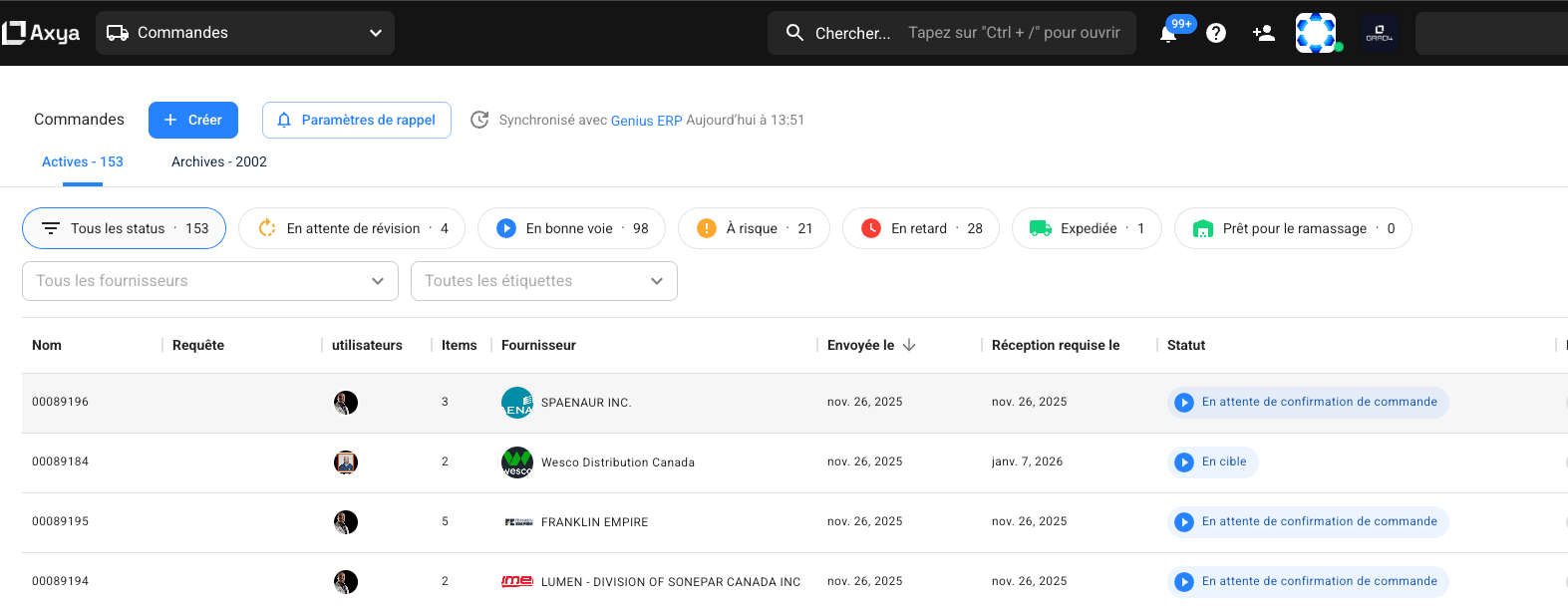
At the top of the page, a row of state cards provides a visual summary of your orders by status:
| Card | Description |
|---|---|
| Draft | Orders still being prepared |
| Updated (En attente de révisions) | Orders with changes requiring buyer action — for example, accepting or rejecting a supplier-proposed modification |
| On Track | Orders confirmed by the supplier and not overdue for shipment |
| At Risk | Orders sent more than two days ago that have not yet been confirmed by the supplier — these should be followed up on |
| Late | Orders that have passed their delivery date |
| Shipped | Orders with items dispatched by the supplier |
| Ready for Pickup | Orders with items available for collection (visible only if your company manages pickups) |
| Completed | Fully delivered and closed orders |
Each card displays a count badge. Click any card to instantly filter the table below to show only orders in that state.
¶ Top Actions
- Create — Start a new Purchase Order manually (see Creating Orders).
- Reminder Settings — Configure the timing and frequency of automated PO follow-up reminders sent to suppliers.
¶ Order Table
The main table lists your orders with the following columns:
| Column | What It Shows |
|---|---|
| Order Name | The PO name, with a "last opened" indicator highlighting orders with new activity since your last visit |
| Supplier | The assigned supplier, shown with their avatar |
| Shipment Progress | A circular progress indicator showing the ratio of shipped and ready-for-pickup items to total items |
| Shipping Note | An icon indicating whether a shipping note has been added |
| Line Items | The total number of line items on the order |
| Status | The current order state, displayed as a color-coded tag with an icon |
| Delivery Date | The expected delivery date for the order |
| Collaborators | Avatar circles showing team members involved in the order |
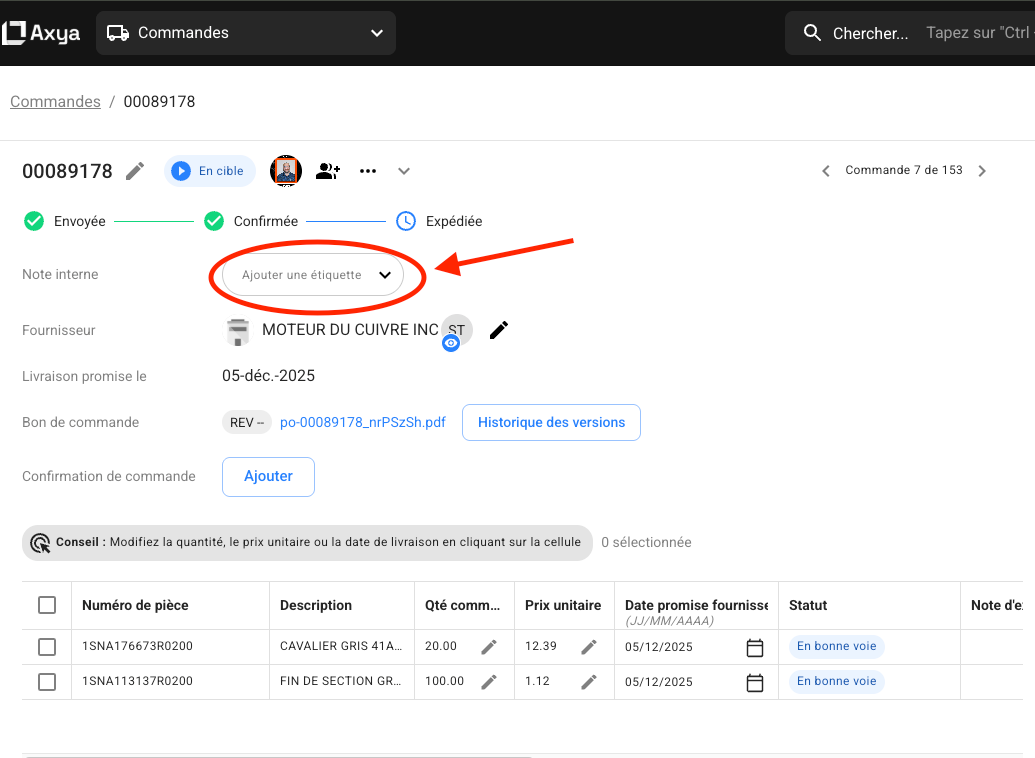
| Internal Notes | An indicator showing whether internal notes have been added |
| Labels | Labels assigned to the order for categorization and filtering |
| Actions | A three-dot menu with additional options for the order |
¶ Filtering, Sorting, and Search
The Orders page provides several ways to find what you need quickly:
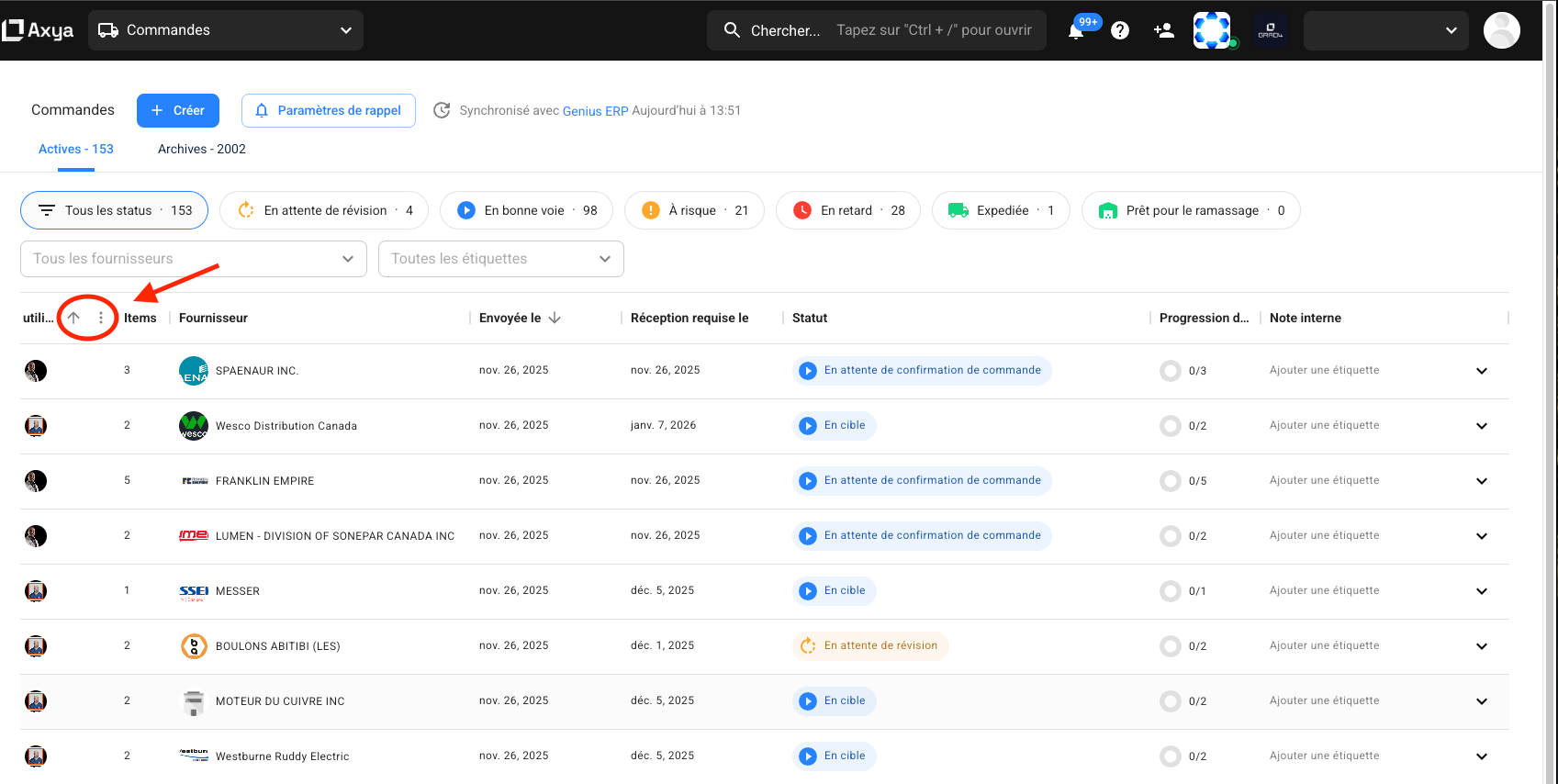
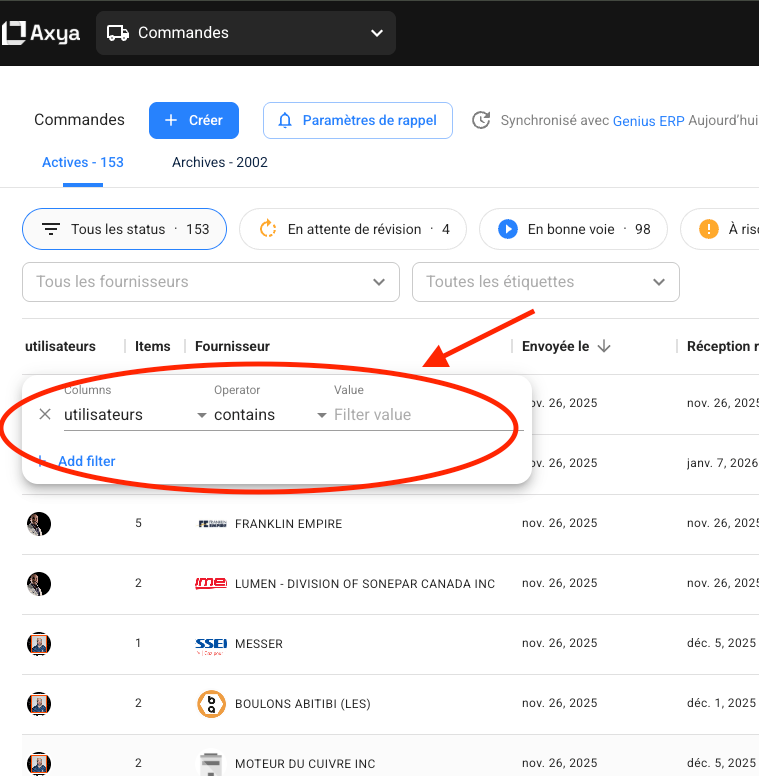
- Column filtering and sorting — Click column headers to sort, or use column-level filters to narrow results by specific criteria. To access advanced filters, hover over a column header and click the three-dot icon that appears.
- Full-text search — Type in the search bar to find orders by name, supplier, or other details. Autocomplete suggestions appear as you type.
- State card filtering — Click any state card to filter the table to a specific status.
- Team view filter — Filter orders to show only those assigned to specific team members.
- Combining filters — Multiple filters can be applied simultaneously to narrow your view.
¶ Customization
Your view preferences are saved automatically:
- Column visibility — Show or hide columns to focus on the information that matters most to you.
- Column order — Columns can be dragged, rearranged, and reordered. Axya automatically saves your column layout.
- Pagination state — Your page size and position are preserved between sessions.
- Saved filters — Your active filters persist so you can pick up where you left off.
For details on individual order tracking and management, see the Order Detail Page. For a full explanation of order states and transitions, see PO Lifecycle.
| Previous | Next |
|---|---|
| Creating Orders | Order Detail Page |