¶ Troubleshooting: Common Issues
Welcome to our Troubleshooting Guide! In this section, we address common issues that users may encounter while interacting with Axya.
¶ White Page when visiting Axya
When a user hasn't interacted with Axya for an extended duration, the Chrome browser tends to store previous versions of the application's data in its cache. This cached data, which may become outdated over time, can lead to issues such as a white page appearing when attempting to access Axya.
To resolve this issue, it is recommended to clear the session and cache in the Chrome browser. This process ensures that the browser fetches the latest data from the server.
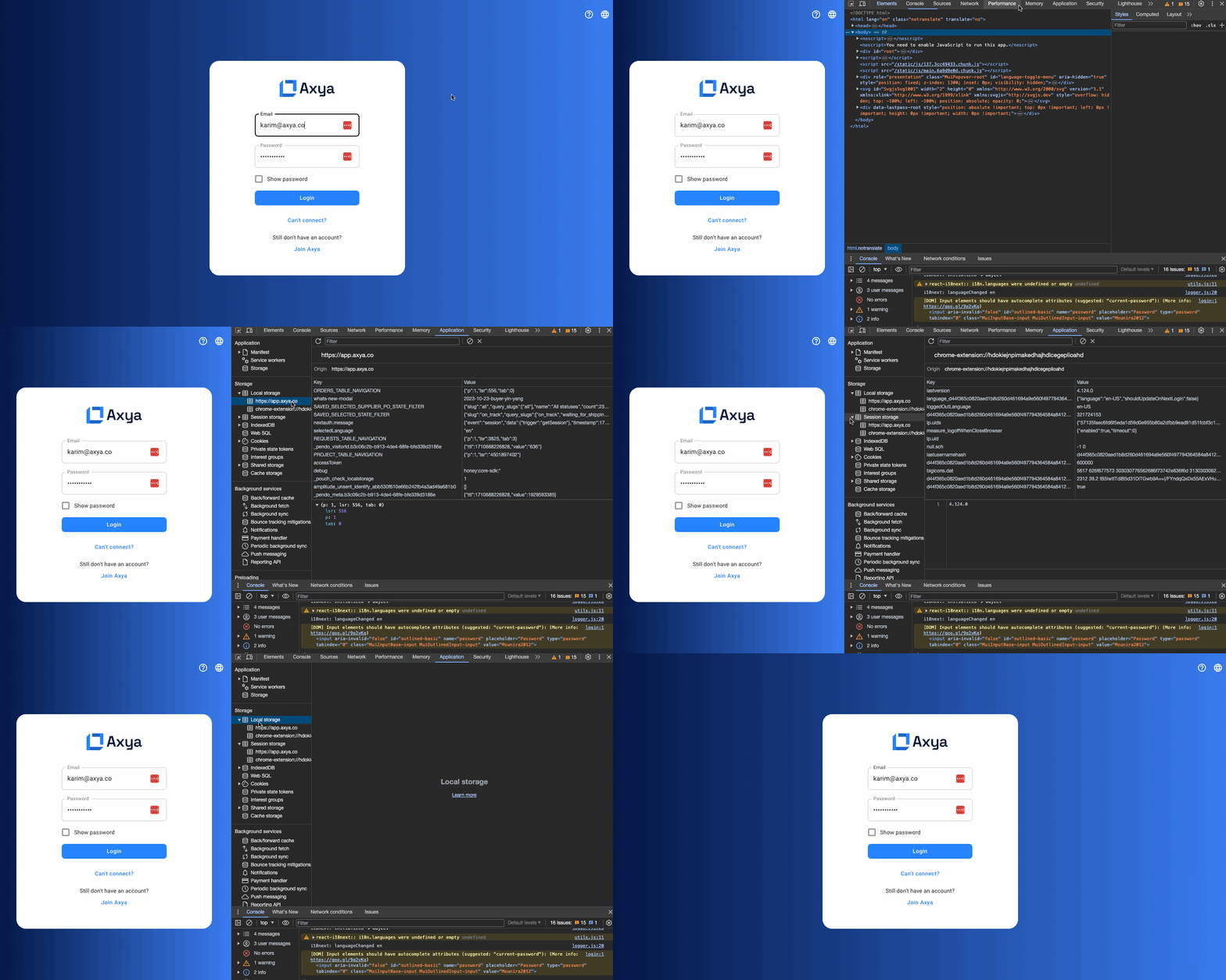
Open Chrome Developer Console:
- Right-click anywhere on the page and select "Inspect" or press
Ctrl+Shift+I(Windows/Linux) orCmd+Option+I(Mac) to open the Developer Console.
Navigate to the "Application" Tab:
- In the Developer Console, find and click on the "Application" tab.
Clear Cache:
- In the "Application" tab, look for the "Clear storage" section on the left sidebar.
- Click on "Clear site data" or "Clear storage" to clear the application cache.
Verify the Application:
- Visit the application again and check if the issue persists. The white page problem should be resolved.